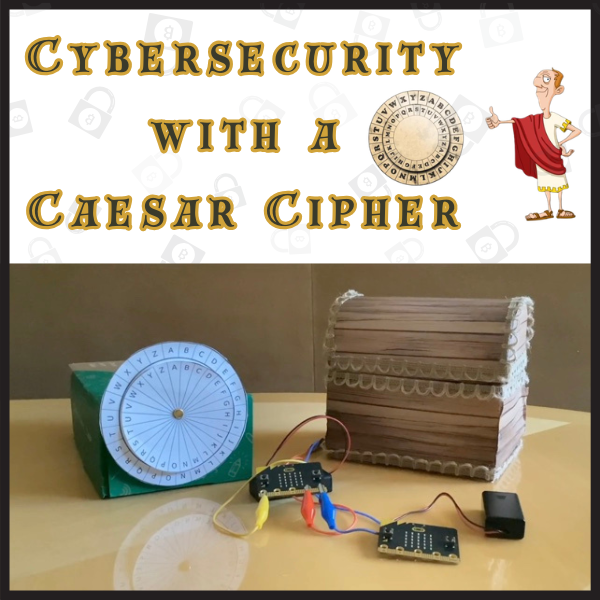
Cryptography Project with micro:bit: Unlock a Treasure Chest

πŸ” Oh no… my treasure chest is locked! It’s secured with a micro:bit using an encrypted Caesar Cipher (key = 5). I have to decrypt the code using a Caesar cipher wheel and then send the correct code from another micro:bit to unlock it! Watch how physical computing and cryptography come together to reveal what’s inside!

There’s plenty of opportunities to test and code for edge cases – have fun! πŸ΄β€β˜ οΈ

Follow and tag us on social media so we can see your project in action!

Code for sender micro:bit

let decryptedPassword = ""
let selectedLetter = ""
let letterIndex = 0
let alphabet = ""
basic.showString("A")
radio.setGroup(1)
alphabet = "ABCDEFGHIJKLMNOPQRSTUVWXYZ"
letterIndex = 0
selectedLetter = alphabet.charAt(0)

input.onButtonPressed(Button.A, function () {
    letterIndex += 1
    if (letterIndex > 25) {
        letterIndex = 0
    }
    selectedLetter = alphabet.charAt(letterIndex)
    basic.showString(selectedLetter)
})
input.onButtonPressed(Button.AB, function () {
    radio.sendString(decryptedPassword)
    decryptedPassword = ""
    basic.showString("SENT")
})
input.onButtonPressed(Button.B, function () {
    decryptedPassword = "" + decryptedPassword + selectedLetter
    basic.showString(decryptedPassword)
})
Code for receiver micro:bit

input.onButtonPressed(Button.A, function () {
    servos.P0.setAngle(80)
})
input.onButtonPressed(Button.AB, function () {
    servos.P0.setAngle(15)
})
radio.onReceivedString(function (receivedString) {
    if (receivedString == "FUN") {
        servos.P0.setAngle(15)
        basic.showIcon(IconNames.Yes)
    } else {
        basic.showIcon(IconNames.No)
    }
})
radio.setGroup(1)
basic.showString("KZS")
servos.P0.setAngle(80)

Check out this cool project using #microbit and an encrypted Caesar Cipher (key=5) to unlock a treasure chest! πŸ” Physical computing meets cryptography β€” love how STEM comes alive! #Coding #STEM #physicalcomputing #edtech

Latest Posts