
Featured Project
Create a Rover with Raspberry Pi Pico
Build a functional rover using Raspberry Pi Pico, DC motors, a motor controller, and Python in Thonny. This project combines coding, wiring, testing, and physical design into one hands-on experience.
This project helps students explore how code connects to real motion and real systems. They work with motors, power, GPIO pins, breadboards, and testing logic while building something tangible they can see move and improve.
Photo Gallery
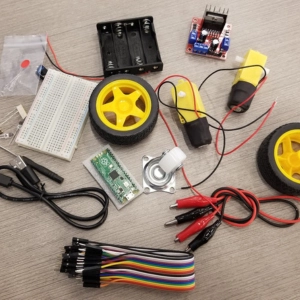
Supplies
- Raspberry Pi Pico with pre-soldered header pins
- USB to Micro USB cable
- 2 DC gear motors with plastic tire wheels
- Miniature castor wheel
- Motor driver board (L298N)
- Battery holder for 4 AA batteries
- Half-size 400-pin breadboard
- 2 white LEDs
- 2 red LEDs
- 4 resistors
- Female-male and male-male jumper wires
- Miniature push button
- Small Phillips screwdriver
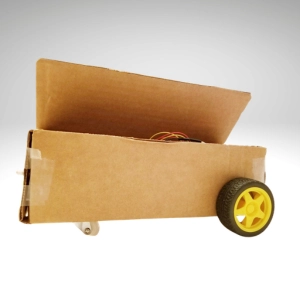
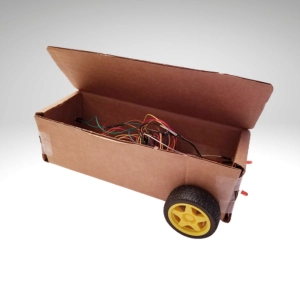
- Cardboard box for the rover chassis
- Scissors
- Masking tape
- 4 AA batteries
Build Steps
Step 1 — Connect the Motor Controller
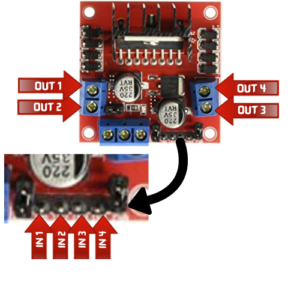
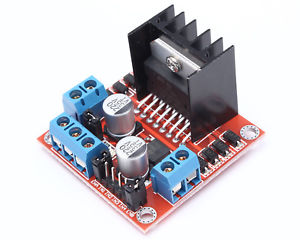
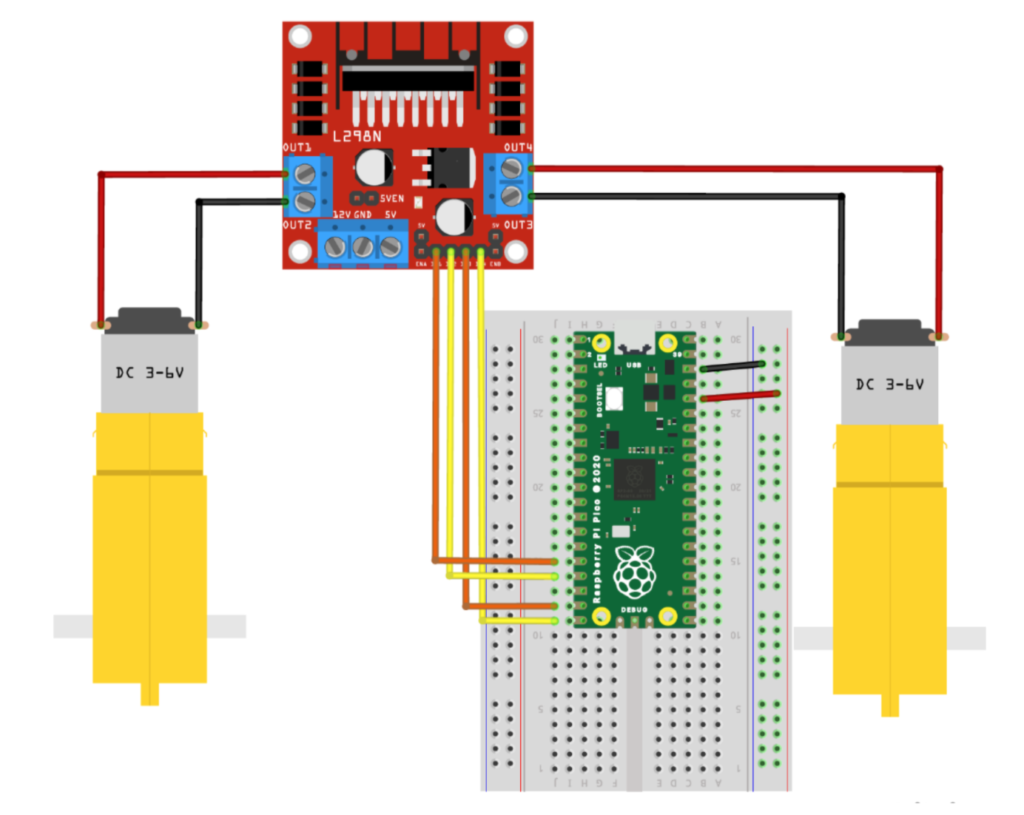
- Loosen the terminals with a screwdriver and connect OUT 1 and OUT 2 to one motor and tighten the terminal screws.
- Connect OUT 3 and OUT 4 to the other motor and tighten the terminal screws.
- IN 1 and IN 2 will be the input controls for one motor, while IN 3 and IN 4 will be the input controls for the second motor.
- Attach the female end of 2 male-to-female jumper cables, one to IN1 and the other to IN2.
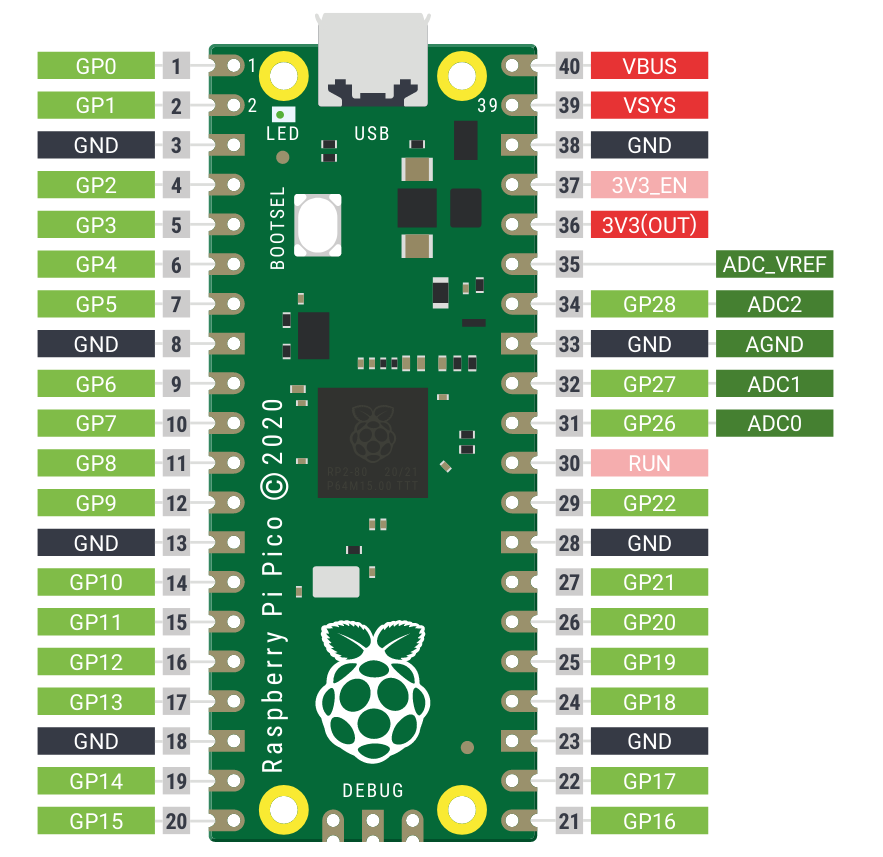
- Attach the male end of these 2 cables, one to GP12 and the other to GP13 on the breadboard (click the Raspberry Pico Pinout Diagram on the left).
- Attach the female end of 2 male-to-female jumper cables, one to IN3 and the other to IN4.
- Attach the male end of these 2 cables, one to GP14 and the other to GP15 on the breadboard.
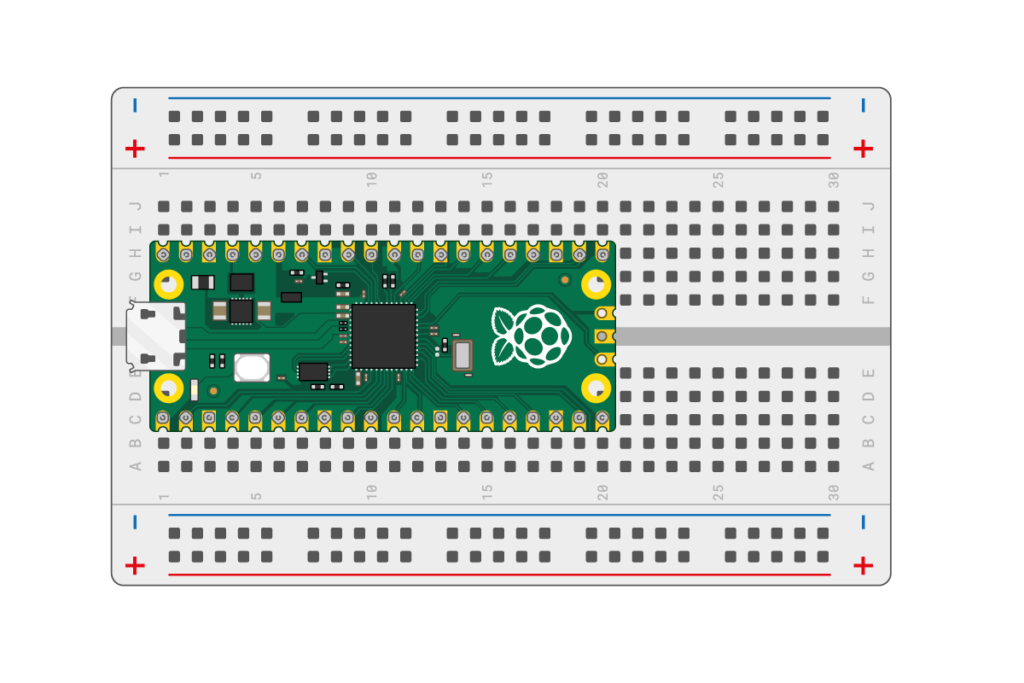
- Attach a male-to-male jumper cable from a GND on Pico to common blue rail on the breadboard.
- Attach another male-to-male jumper cable from 3V3 (OUT) to the common red rail on the breadboard (click the Raspberry Pico/breadboard diagram on the left).
Step 2 — Add Power
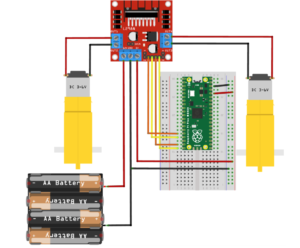
- Loosen the screws on the 3 remaining terminals on the controller board.
- Attach one end of a male-to-male jumper cable to the 5V terminal and tighten the screw, making sure the cable is secure.
- Insert the other end of the cable to the common power rail.
- Connect the red wire from the battery pack to the 12V terminal on the controller board and tighten securely.
- Connect the black wire from the battery pack AND one end of a male-to-male jumper cable to the GND on the controller board, making sure they are both secured within this one terminal.
- Insert the other end of the male-to-male cable to a GND on the breadboard. (Refer to the diagram to the left.)
- Insert 4 – AA batteries into the battery pack.
Step 3 — Test the Motors
You’ll need to fire up Thonny to begin coding. Head over here to learn about Pico and how to install Thonny for your project.
- Connect Pico to your computer and open up Thonny
- You’ve connected the motor controller to pins GP12 and GP13, and GP14 and GP15.
- One pin turns the motor in one direction while the other turns it in the opposite direction
- Your job is to figure out which is the right motor and which is the left motor — and which direction moves forward vs backward
- Open Thonny, create a new file, and start with this code:
from machine import Pin
import utime
Remember: The machine library is used to create a Pin object, and the utime library allows you to pause your program using sleep().
4. Create 2 variables for one motor. Since one motor is connected to GP12 and GP13, set these pins as output:
motor_right_fwd = Pin(12, Pin.OUT)
motor_right_bwd = Pin(13, Pin.OUT)
5. Send a HIGH (on) and LOW (off) signal:
motor_right_fwd.high()
utime.sleep(3)
motor_right_fwd.low()
6. Run the program. The motor should spin for 3 seconds, then stop. If it spins the wrong direction, don’t worry — you’ll fix that next.
7. Test the opposite direction:
motor_right_bwd.high()
utime.sleep(3)
motor_right_bwd.low()
8. If it doesn’t spin correctly, swap the pin numbers.
9. Repeat for the second motor.
10. Label each motor (left vs right).
Step 4 — Build the Chassis
- Find a small cardboard box to serve as your rover.
- Considerations:
- Size of the box (Is it sturdy enough to withstand the weight of the rover’s components? Is it large enough to hold all of the rover’s components?)
- Attaching components (What is needed to keep the items intact?, i.e., scotch or masking tape)
- Place the breadboard, microcontroller (Raspberry Pico), and the motors inside the chassis. Mark where each wheel axle should be located and create the holes for each. Insert each wheel axle into the chassis and secure both motors to the chassis with tape, making sure to place them in their proper place (left and right motor).
- Attach the wheels to each axle.
- Attach the miniature castor wheel underneath the front end of the chassis, making sure it’s centered.
- With your Raspberry Pico attached to your computer, run your code from above to test your rover.
Step 5 — Run Without a Computer
- Save your code directly on your Raspberry Pico as main.py.
- Disconnect the rover from your computer.
- Remove and then replace one of the batteries in your rover and your creation should automatically run the main.py file.
Build Reference Diagrams
Finished Code
from machine import Pin
import utime

motor_right_fwd=Pin(12, Pin.OUT)
motor_right_bwd=Pin(13, Pin.OUT)
motor_left_fwd=Pin(14, Pin.OUT)
motor_left_bwd=Pin(15, Pin.OUT)

motor_right_fwd.high()
motor_left_fwd.high()
utime.sleep(3)
motor_right_fwd.low()
motor_left_fwd.low()

utime.sleep(1)

motor_right_bwd.high()
motor_left_bwd.high()
utime.sleep(3)
motor_right_bwd.low()
motor_left_bwd.low()
Why This Project Matters
This project gives students a meaningful reason to test, debug, and refine code while also seeing how software controls physical hardware. It brings together electronics, engineering, coding, and design in one memorable build.
Want more featured projects like this?
Explore more classroom-ready projects that connect coding to hands-on making, problem solving, and real-world technology.