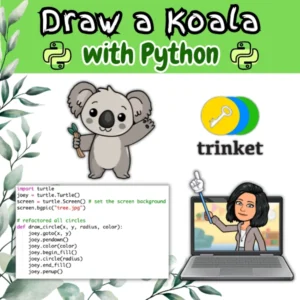
🎨 Random Shape Art with Python Turtle in Trinket – A Fun Beginner Coding Project

What if Python could be more than a programming language?
What if it could also be… an artist?

In this beginner-friendly Python screensaver project, I used the Turtle graphics module inside the Trinket IDE to create a program that draws completely random art. Each run is a surprise:

  • 🖌 Random Colors – Generated using from random import randint, so no two drawings are alike.
  • 📏 Random Sizes – From tiny doodles to oversized shapes that dominate the canvas.
  • 🔄 Random Shapes – Circles, squares, triangles, and more—picked at random for variety.

Why this project is great for beginners:

  • It’s visual and interactive—perfect for keeping motivation high while learning Python.
  • It introduces basic concepts like loops, functions, and randomness in a fun way.
  • You don’t need to install anything—Trinket runs in your browser, so you can start coding instantly.

🐍🎨 Try out this Python Turtle program in Trinket—every run creates a completely random piece of art! Random colors. Random shapes. Random sizes. No two are ever the same. #Python #Coding #100DaysOfCode #PythonTurtle

Learn how to code a Whack-a-Mole Game

🐹⏱️ Think you’re fast enough to beat the clock? I built a Whack-a-Mole game in the Trinket IDE using Python. It’s a timed challenge where you have to whack as many moles as possible before the time runs out. It’s simple and fun. Can you set a new high score? Contact me to find out how I created it!

🐹⏱️ Just played this Python Whack-a-Mole game. Think you can beat my score? #python #gaming #learntocode

Decrypt, Send, Unlock: Physical Computing Meets Cryptography with micro:bit

🔐 Oh no… my treasure chest is locked! It’s secured with a micro:bit using an encrypted Caesar Cipher (key = 5). I have to decrypt the code using a Caesar cipher wheel and then send the correct code from another micro:bit to unlock it! Watch how physical computing and cryptography come together to reveal what’s inside!

There’s plenty of opportunities to test and code for edge cases – have fun! 🏴‍☠️

Follow and tag us on social media so we can see your project in action!

Code for sender micro:bit

let decryptedPassword = ""
let selectedLetter = ""
let letterIndex = 0
let alphabet = ""
basic.showString("A")
radio.setGroup(1)
alphabet = "ABCDEFGHIJKLMNOPQRSTUVWXYZ"
letterIndex = 0
selectedLetter = alphabet.charAt(0)

input.onButtonPressed(Button.A, function () {
    letterIndex += 1
    if (letterIndex > 25) {
        letterIndex = 0
    }
    selectedLetter = alphabet.charAt(letterIndex)
    basic.showString(selectedLetter)
})
input.onButtonPressed(Button.AB, function () {
    radio.sendString(decryptedPassword)
    decryptedPassword = ""
    basic.showString("SENT")
})
input.onButtonPressed(Button.B, function () {
    decryptedPassword = "" + decryptedPassword + selectedLetter
    basic.showString(decryptedPassword)
})
Code for receiver micro:bit

input.onButtonPressed(Button.A, function () {
    servos.P0.setAngle(80)
})
input.onButtonPressed(Button.AB, function () {
    servos.P0.setAngle(15)
})
radio.onReceivedString(function (receivedString) {
    if (receivedString == "FUN") {
        servos.P0.setAngle(15)
        basic.showIcon(IconNames.Yes)
    } else {
        basic.showIcon(IconNames.No)
    }
})
radio.setGroup(1)
basic.showString("KZS")
servos.P0.setAngle(80)

Check out this cool project using #microbit and an encrypted Caesar Cipher (key=5) to unlock a treasure chest! 🔐 Physical computing meets cryptography — love how STEM comes alive! #Coding #STEM #physicalcomputing #edtech

Latest Posts

Physical Computing: Let’s Build a Treasure Chest

This pirate’s treasure isn’t buried – it’s coded. Watch how to build a cardboard treasure chest and bring it to life with a micro:bit! Physical computing makes imagination tangible with cardboard, circuits, and code. Skills like these map straight to the real world – engineering, robotics, and creative problem solving. Want to learn more? Contact us!

Next we’ll show how to code a servo to open and close our treasure chest!

Just found this creative physical computing activity bringing a cardboard treasure chest to life with a micro:bit! 🏴‍☠️✨ Can’t wait to learn how to code a servo to open it next! #MakeCode #Microbit #PhysicalComputing

The Importance of Physical Computing

AI can’t fix wiring-humans can. Physical computing builds real-world, future-proof skills. Wiring a micro:bit to a servo is more than coding-it’s foundational knowledge that transfers to trades like automotive wiring, robotics, and electronics. Watch this quick stop motion demo on wiring a trailer light using a wire stripper, heat shrink connectors, and a heat gun.

🐢What is Turtle Graphics?

Turtle Graphics is a way to draw pictures and shapes by telling a “turtle” (a little triangle) what to do with code. The turtle can move forward, turn, and draw lines as it moves. This is a fun and visual way to learn programming using Python!

Try it out! Create a free account at Trinket.io and create a graphical representation of a building using turtle graphics. It should have a square shape, which you would make using a loop.

🔁 Drawing a Square with a Loop

To draw a square, the turtle needs to:

  • Go forward (to draw a side)
  • Turn 90 degrees
  • Repeat 4 times to make all sides

Here is some sample code to get you started:

import turtle

# Set up the screen and turtle
t = turtle.Turtle()

# Optional: Choose a fill color
t.fillcolor("lightblue")

# Start filling in the shape
t.begin_fill()

# Draw a square
for i in range(4):
    t.forward(100)    # Move forward by 100 units
    t.right(90)       # Turn right 90 degrees

# End the fill
t.end_fill()
🎨 Filling with Color

To color your building:

  • Use t.fillcolor("yourColor") to pick a color.
  • Use t.begin_fill() before your loop.
  • Use t.end_fill() after the loop.
💡 Be Creative!

After you draw your building, you can:

  • Add windows (smaller squares)
  • Draw a door
  • Add a roof (like a triangle)
  • Use different colors
  • Try t.penup() and t.pendown() to move without drawing

Did you know you can use Python and Turtle graphics to create beautiful art? All you need is a little imagination, functions and loops. Watch the video to see it in action! #Python #Coding #TurtleGraphics #LearnToCode

Latest Posts

Space Game – Capture the Stars

Play my Scratch Space Game – catch as many stars as you can without getting hit by the asteroid! It uses event handlers, inputs, variables, functions, parameters, conditionals, and loops. Don’t miss the fun sound effects! Want to learn how I programmed it? Contact me!

How to play the game:
Cosmos, the Space Dog will ask you for your name.
1) Enter your name in the space provided.
2) Submit your response.
3) Cosmos will tell you to:
– use the mouse to touch the stars with your
spaceship
– collect as many stars as you can without crashing
into the asteroid
4) Each time you collect 10 stars, your score will be multiplied by a random number between 1 and 20.
Good luck!

Scratch Game: The Great Escape

Visual learners love to learn how to code using Scratch! Try our fun interactive escape rooms created with Scratch (turn up the volume for the sound effects!)

Do you want to know how we did it? Contact us to learn more!

Challenge 1:

a) Click on the monkey three times to make the bananas fall to the ground.

b) Use the arrow keys to move the monkey to the bananas on the floor.

c) Move the pointer around the jungle to place the flying butterfly on the monkey.
Challenge 2:

Use the arrow keys so the dog can chomp on the bone (don’t use the left arrow or he’ll growl at you!)
Challenge 3:

Tap on the space bar to start the countdown and watch the spaceship take flight.